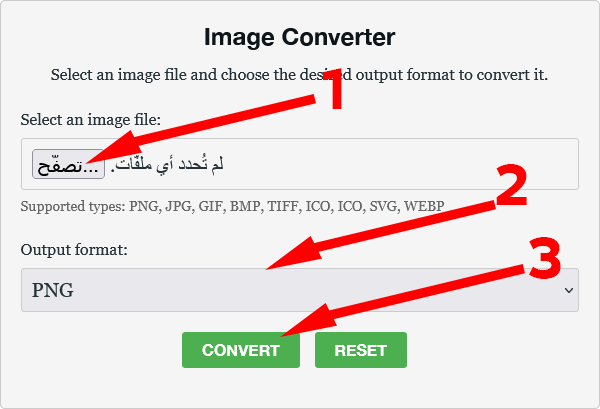
Original Steps Provided by the User (for reference):
- Go to the official conversion website:
https://imageconverte.com/ - Select “Choose File”.
- Select the image you want to convert.
- Under “Output format,” choose “GIF.”
- Select “Convert.”
- The “Download Converted Image” button will appear at the bottom.
Introduction:
The Graphics Interchange Format, or GIF, remains highly popular for creating simple animations, low-color graphics, and distinctive web imagery. Whether you’re aiming to create a basic single-frame GIF or convert a complex image to this highly compatible format, using an online tool is the fastest route. This guide offers a comprehensive, step-by-step walkthrough to transform your existing image files (like JPG or PNG) into the GIF format with speed and zero hassle, ensuring your content is optimized and easily discoverable by search engines.
Why Use GIF? (A Quick SEO Note):
While limited to 256 colors, the GIF format excels at handling simple graphics, logos, and short animations. For small, simple image elements, the GIF format can sometimes offer a smaller file size than PNG, contributing positively to page load speed, which is a key Google ranking factor.
The 6-Step Fast Track to GIF Conversion
Forget complicated graphic software. We’ll use an efficient, user-friendly online platform to convert your single image into the GIF format in a matter of seconds.
Step 1: Access the Dedicated Conversion Website
To begin, you must navigate to a reliable online file conversion service. Open your browser and go directly to a platform like https://imageconverte.com/ (or any comparable, professional image processing site). This ensures you have access to the necessary tools immediately.
Step 2: Initiate the Upload Process
On the main page of the converter, locate and click the prominent upload button, which is clearly labeled “Choose File.” This action will open your operating system’s file manager, preparing you to select your source material.
Step 3: Select the Image to Transform
Navigate through your saved documents and select the specific image that you intend to convert into a GIF file. Once selected, the image will be uploaded to the server, and the tool will be ready to proceed with the format change.
Step 4: Specify the Output Format (Crucial)
You need to clearly tell the service what format you desire. Look for the setting, often displayed in a menu or dropdown list, labeled “Output format.” From these options, make sure to explicitly choose GIF.
Step 5: Execute the Conversion Command
With your image loaded and GIF selected as the final file type, click the main action button, usually marked “Convert.” The online engine will now process your request. This entire step is often completed very quickly, depending on the file’s original size.
Step 6: Download Your Final GIF File
Upon successful conversion, a prompt will appear on the screen, or a new button will become visible. Click the designated “Download Converted Image” button. Your newly created GIF file will be saved directly to your downloads folder, ready for immediate use.
Leave a Reply